
In This Article:
Why Do I Need to "Close" a Job?
Closing the Job: A Simple 4-Click Process
Why Do I Need to "Close" a Job?
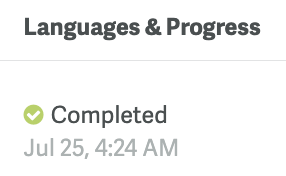
In the translation portal, a job moves from In Progress to Completed when our linguists are done. However, "Completed" just means the translation is ready for you to review and download.
When you click Close, you are confirming:
-
You have reviewed the files and are satisfied.
-
The job is formally approved and finished.
-
The job is now eligible for official documentation and to request a Translation Certificate.
Closing the Job: A Simple 4-Click Process
You can close any job that shows the Completed status directly from your Jobs Dashboard.
Step 1: Find Your Job in the Dashboard
Log into the Jeenie Translation Portal and navigate to your Jobs Dashboard. Look for any job with the status "Completed."
Step 2: Access the Action Menu
On the right-hand side of the job's row, locate the Action column and click the "..." menu icon.
Step 3: Choose "Close"
Select "Close" from the menu options.

Step 4: Confirm the Change
The Job status will instantly update from Completed to Closed.
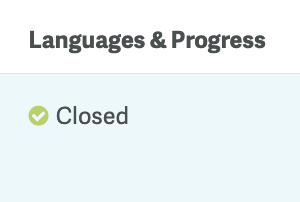
That's it! Your job is now officially finished and you can request a Translation Certificate.
Quick Tip: Confused about the difference between Completed and Closed? Check out our full guide on Understanding the Translation Job Statuses for a clear breakdown of every status you might see!