
Once your translation job is complete, you can download the finalized files directly from the Translation Portal by following the steps below:
Step 1: Go to the Jobs Page
Click on Jobs in the top navigation menu.
Here, you’ll see a list of all submitted jobs along with their current status.

Step 2: Open the Completed Job
Locate the job you would like to download.
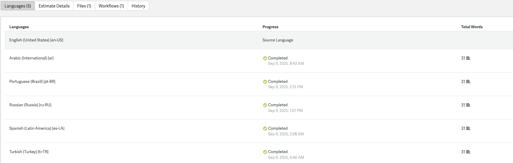
Click on the Job Name to open the job details page, where you can view the available languages and files for that specific job.
Example:
Step 3: Download the Translated Files
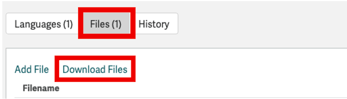
On the job page, click on Files, then select Download Files.
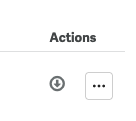
You can also download files by clicking the download icon under the Actions column.
To download files from additional jobs, simply return to the Jobs section in the top menu and repeat the steps above.
If you’d like more details about job statuses or need instructions on how to request a translation certificate, please review the following articles:
Understanding the Translation Job Statuses
How to Close a Completed Translation Job