
To ensure a seamless experience with Jeenie, Android users must adjust two specific system settings. These adjustments allow the Jeenie app to maintain a stable audio connection with your interpreter even while you navigate to other applications during an active call.
Failure to enable these settings may result in dropped audio or the app closing unexpectedly when minimized.
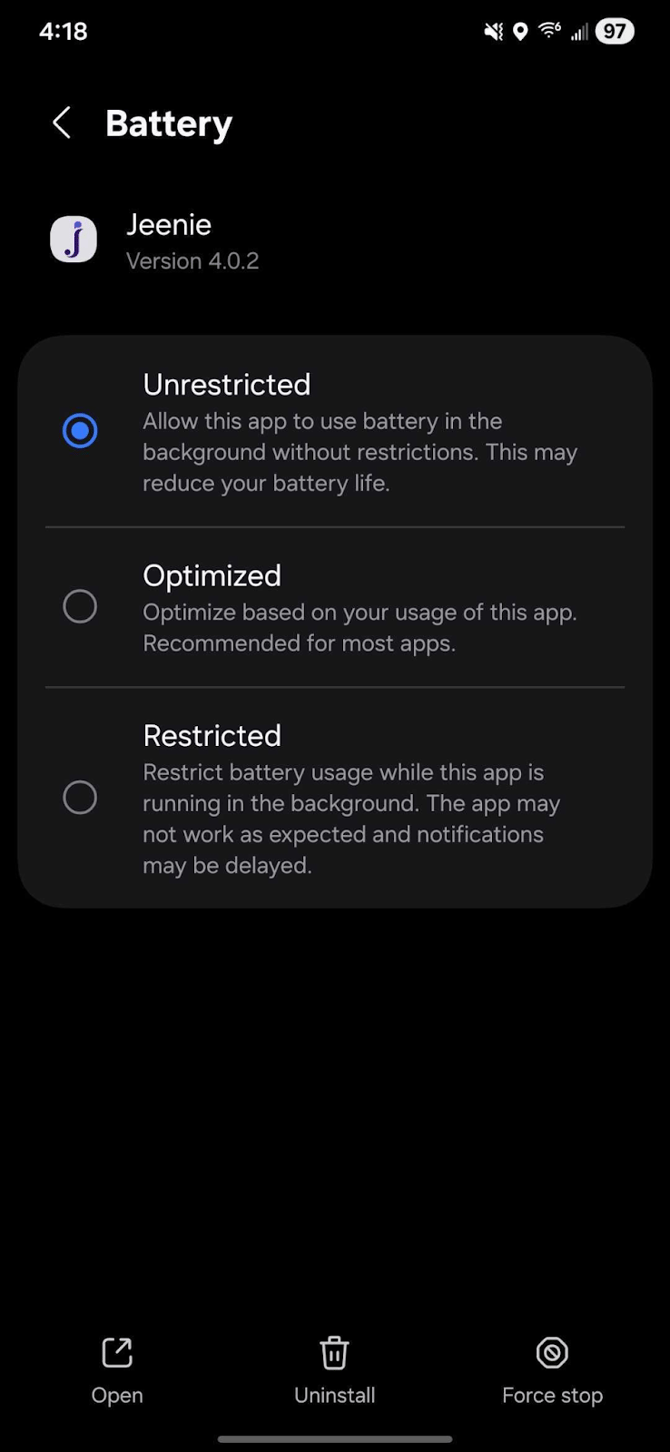
1. Set Battery Usage to "Unrestricted"
Android’s default battery optimization can sometimes "silence" apps running in the background to save power. Setting Jeenie to Unrestricted ensures your call remains active.
- Open Settings on your device.
- Search for Jeenie in the search bar.
- Select App Info.
- Tap on Battery.
- Select Unrestricted.
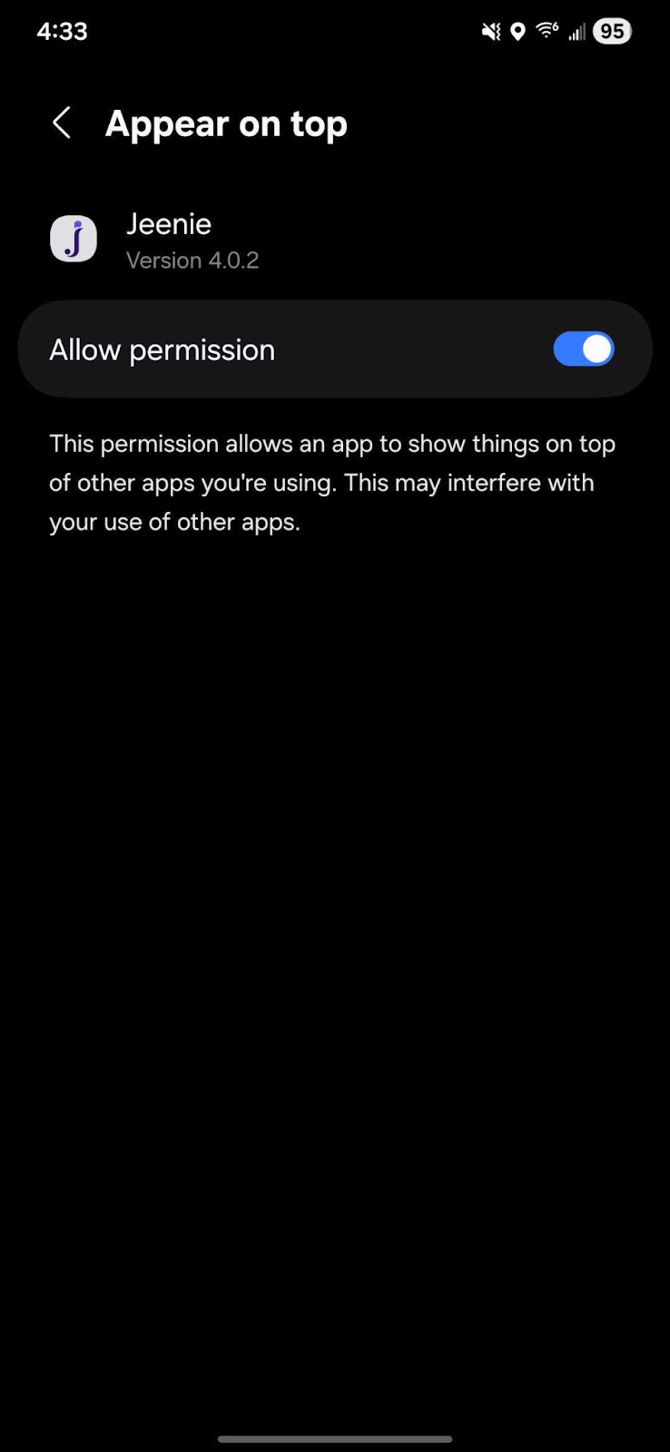
2. Enable "Appear on Top" (Draw Over Other Apps)
This setting allows the Jeenie interface to maintain its connection and audio priority while you use other apps.
- Return to the App Info page for Jeenie.
- Scroll down and select Appear on top (or Draw over other apps).
- Toggle the switch to On.
Note: Menus may vary slightly depending on your device manufacturer (Samsung, Google Pixel, etc.), but searching for "Jeenie" in your main Settings menu will always take you directly to the necessary App Info page.